
 EN
EN



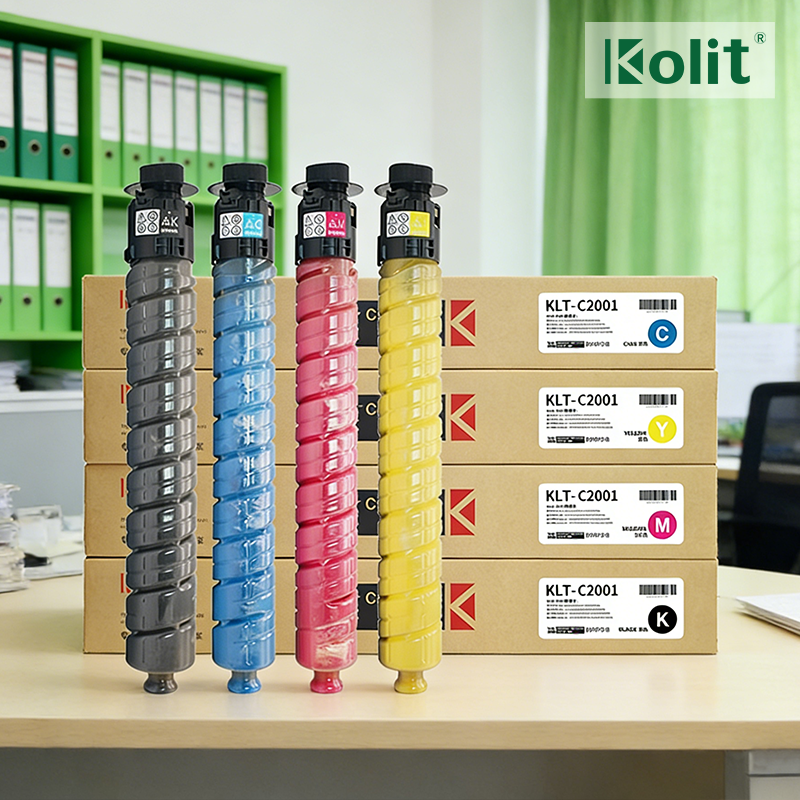
Printer cartridge problems can disrupt workflow and damage productivity across any office environment. When a printer cartridge fails or underperforms, the entire printing operation comes to a halt, affecting document output, project timelines, and team efficiency. Understanding how to troubleshoot printer cartridge issues efficiently transforms a potential crisis into a manageable task that your IT team or office manager can resolve without lengthy downtime or expensive service calls. Common printer cartridge difficulties include poor print quality, error messages, incompatibility problems, and installation failures that plague businesses of all sizes.
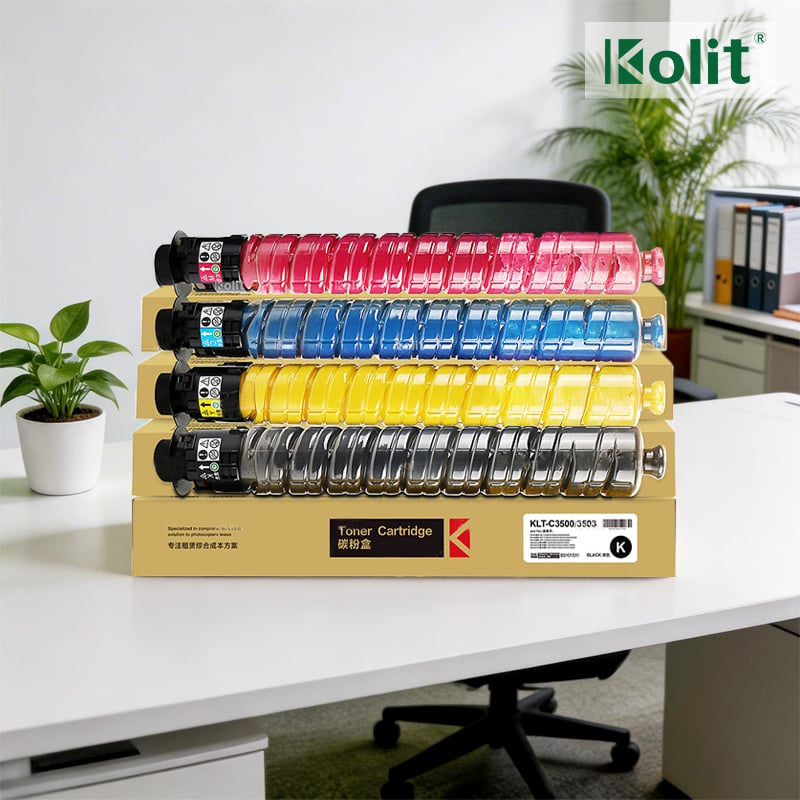
This guide provides systematic troubleshooting approaches for printer cartridge challenges, enabling you to diagnose root causes quickly and implement effective solutions. By following structured diagnostic steps and understanding the most common printer cartridge failure modes, you can minimize downtime and reduce the need for replacement purchases. Whether you manage a single office printer or maintain a fleet of multifunction devices, mastering printer cartridge troubleshooting delivers immediate operational and financial benefits.
Identifying Common Printer Cartridge Problems
Print Quality Degradation and Fading
Print quality issues represent one of the most frequent printer cartridge complaints in office environments. When documents emerge with faded text, streaky images, or inconsistent color distribution, the printer cartridge may be running low on toner or ink, or internal components may require cleaning. Check the printer cartridge toner level through the device's display panel or accompanying software utility. A declining printer cartridge often produces progressively worse output before complete failure occurs. In color systems, one or more printer cartridge units may deplete at different rates, causing color imbalance where certain hues appear absent or weak.
Error Messages and Detection Failures
Modern printers communicate printer cartridge status through specific error codes that help diagnose underlying problems. Messages indicating 'cartridge not detected,' 'incompatible cartridge,' or 'cartridge error' suggest the printer cartridge may have a defective chip, improper seating, or incompatibility with your device firmware. Some printer cartridge warnings reflect genuine failures, while others signal installation mistakes or temporary detection glitches. The printer cartridge detection mechanism uses electrical contacts and microchips to verify authenticity and status, and dust, debris, or misalignment can trigger false warnings.
Systematic Troubleshooting Steps for Printer Cartridge Repair
Inspection and Cleaning Procedures
Begin printer cartridge troubleshooting by performing a visual inspection and careful cleaning. Remove the printer cartridge from its slot and examine the electrical contacts on both the cartridge and the printer slot for dust, dried ink, or oxidation that could prevent proper communication. Use a lint-free cloth and isopropyl alcohol to gently clean the printer cartridge contacts and the corresponding slots in the printer. Ensure the printer cartridge sits fully seated in its slot until it clicks into place, as loose placement commonly causes detection errors. Reinsert the printer cartridge and run a test print to confirm whether contact issues were the source of the problem.
Resetting and Firmware Updates
If a printer cartridge fails to register despite proper cleaning and seating, attempt a printer reset through the device menu or by powering the unit off for thirty seconds. Some printer cartridge issues stem from outdated printer firmware that fails to recognize new cartridge types or security features. Visit the printer manufacturer's support website, identify your exact model number, and download the latest firmware version. Apply the firmware update according to the manufacturer's instructions, then reinstall the printer cartridge and test again. Firmware updates often resolve printer cartridge compatibility issues and may improve overall device performance and security.
Prevention and Long-Term Printer Cartridge Management
Proper Installation and Storage
Establishing proper handling practices prevents many printer cartridge problems before they occur. Store unused printer cartridge units in cool, dry conditions away from direct sunlight, as heat and humidity degrade toner chemistry and compromise electrical components. When installing a fresh printer cartridge, always remove protective seals and tape before insertion, as overlooking this step causes immediate errors. Handle the printer cartridge by its sides rather than touching the toner reservoir or electrical contacts, preventing contamination that could impair performance. Document cartridge installations in a simple log so you can track printer cartridge replacement cycles and anticipate future service needs.
Monitoring and Preventive Replacement
Proactive monitoring of printer cartridge toner levels prevents crisis situations where the printer cartridge suddenly fails during critical printing jobs. Most modern printers display printer cartridge percentage remaining through their control panel or network-connected software dashboards. Establish a replacement schedule where you order new printer cartridge units when toner levels reach twenty-five percent, ensuring fresh supplies arrive before old units fail completely. Maintaining inventory of compatible printer cartridge replacements eliminates emergency delays and allows you to choose high-quality printer cartridge options that match your device specifications and budget requirements.
FAQ
Why does my printer display an incompatible printer cartridge error when I insert a new unit?
An incompatible printer cartridge message typically indicates either incorrect cartridge model for your printer, outdated device firmware that fails to recognize newer cartridge types, or a defective microchip on the cartridge itself. Verify you purchased the exact printer cartridge model specified in your printer's manual, not a similar-looking version. Check for available firmware updates and install them before reinserting the printer cartridge. If the error persists after confirming correct cartridge type and updating firmware, the printer cartridge chip may be faulty and require replacement with a new unit.
Can I use third-party or remanufactured printer cartridge products safely?
Yes, quality third-party and remanufactured printer cartridge options work reliably when sourced from reputable vendors who perform rigorous testing and quality control. However, some printer cartridge manufacturers implement firmware blocks that reject non-original units, displaying error messages or reducing print quality. Before purchasing a printer cartridge alternative, research your specific printer model to confirm compatibility with aftermarket products. Always purchase from established printer cartridge suppliers with clear return policies, warranty protection, and customer reviews confirming reliable performance with your device.
How do I know when a printer cartridge has reached the end of its lifespan?
A printer cartridge typically signals end-of-life through degraded print quality that cleaning and reset procedures cannot restore, persistent error messages even after troubleshooting, or complete failure to produce any output. Some advanced printers track printer cartridge page yields and alert users when cartridges approach factory-specified page capacity, usually after printing fifty to one hundred thousand pages depending on cartridge type and model. When a printer cartridge reaches this threshold, replacement becomes unavoidable regardless of appearance or remaining toner volume, as internal components wear out and reliability declines sharply.